
PDF Accessibilty
Improve the accessibility and usability of your PDFs.

The Web Team recommends using Adobe Acrobat Pro to check a PDF's accessibility and
usability. To help the College meet federal accessibility guidelines, all PDFs posted on mcla.edu must pass Adobe Acrobat's accessibility check.
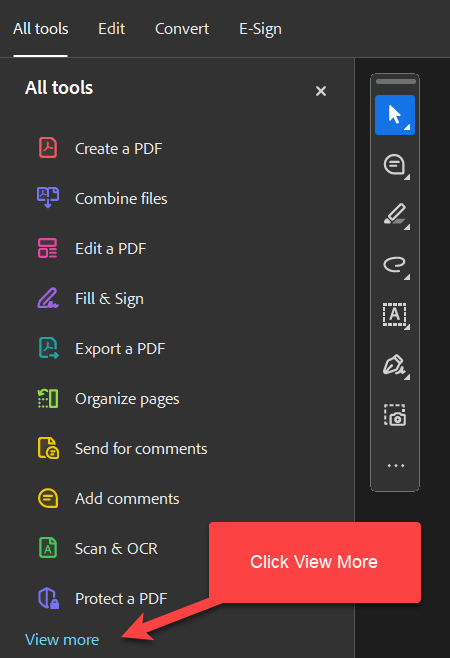
After opening the PDF, navigate to “All tools” and click “View More”
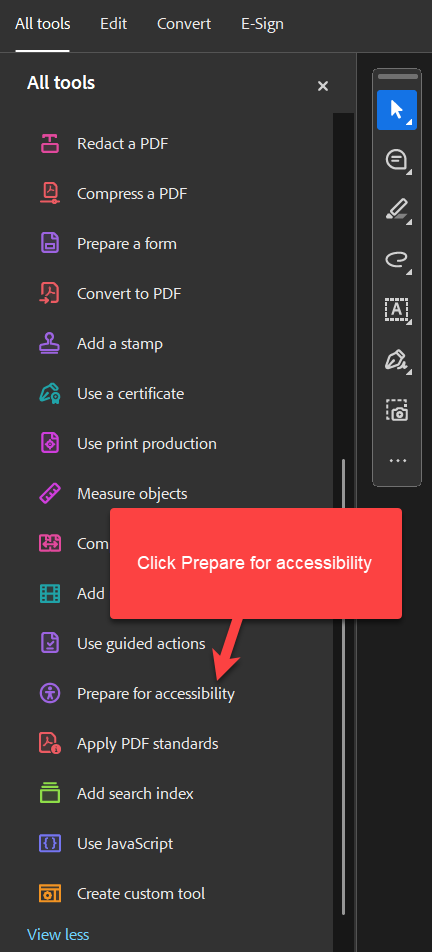
Click “Prepare for accessibility”
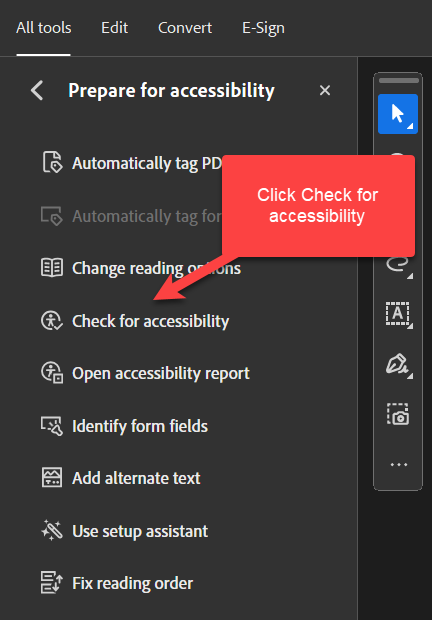
Click “Check for accessibility”
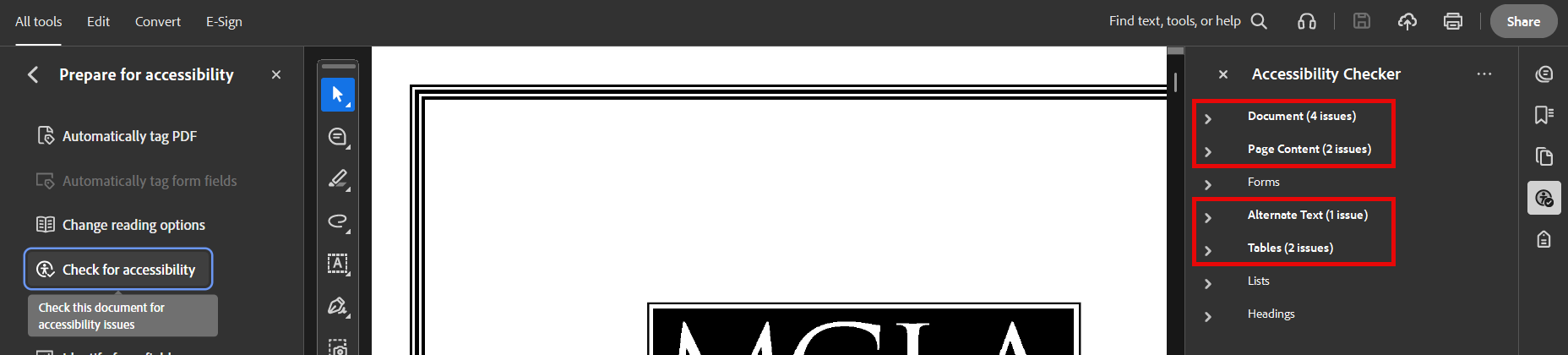
After the report finishes, look for “Issues”.
Click on a “Failed” listing.
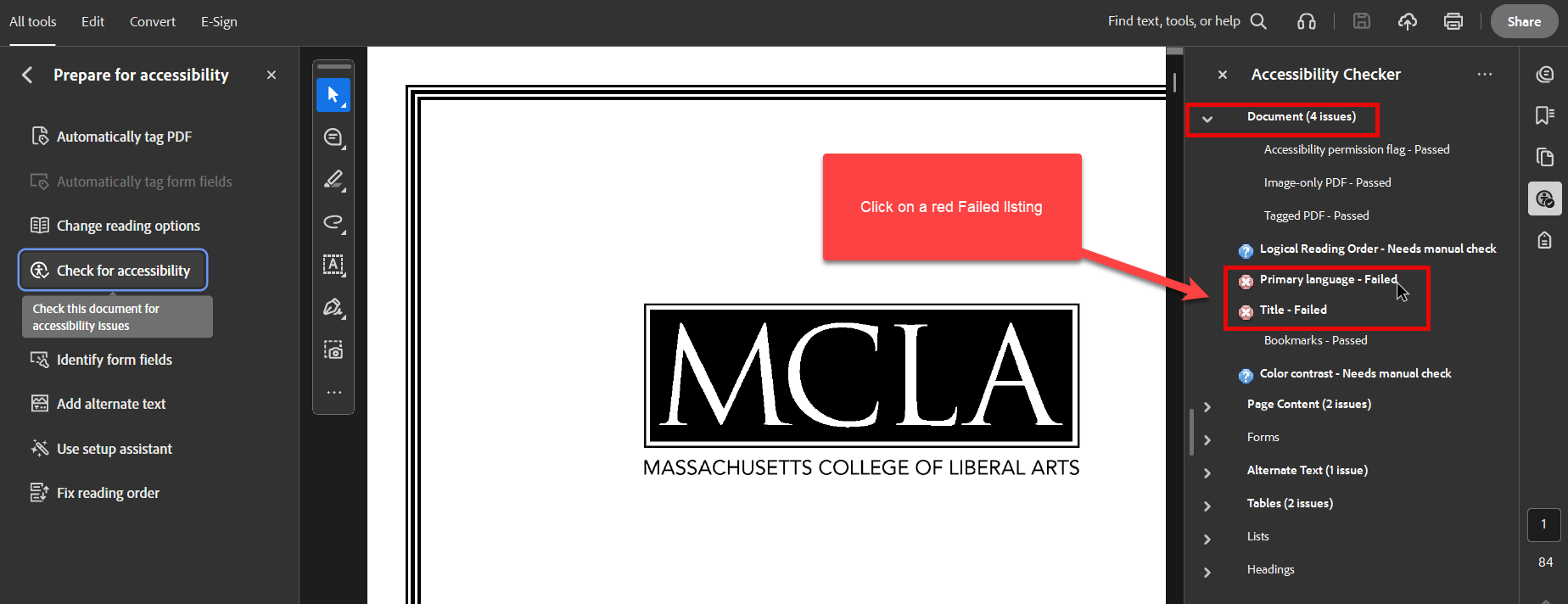
In many cases, you can fix accessibility issues directly in Adobe Acrobat. Each issue also includes an explanation to help you understand the problem and how to resolve it.
- Fix
- Explain
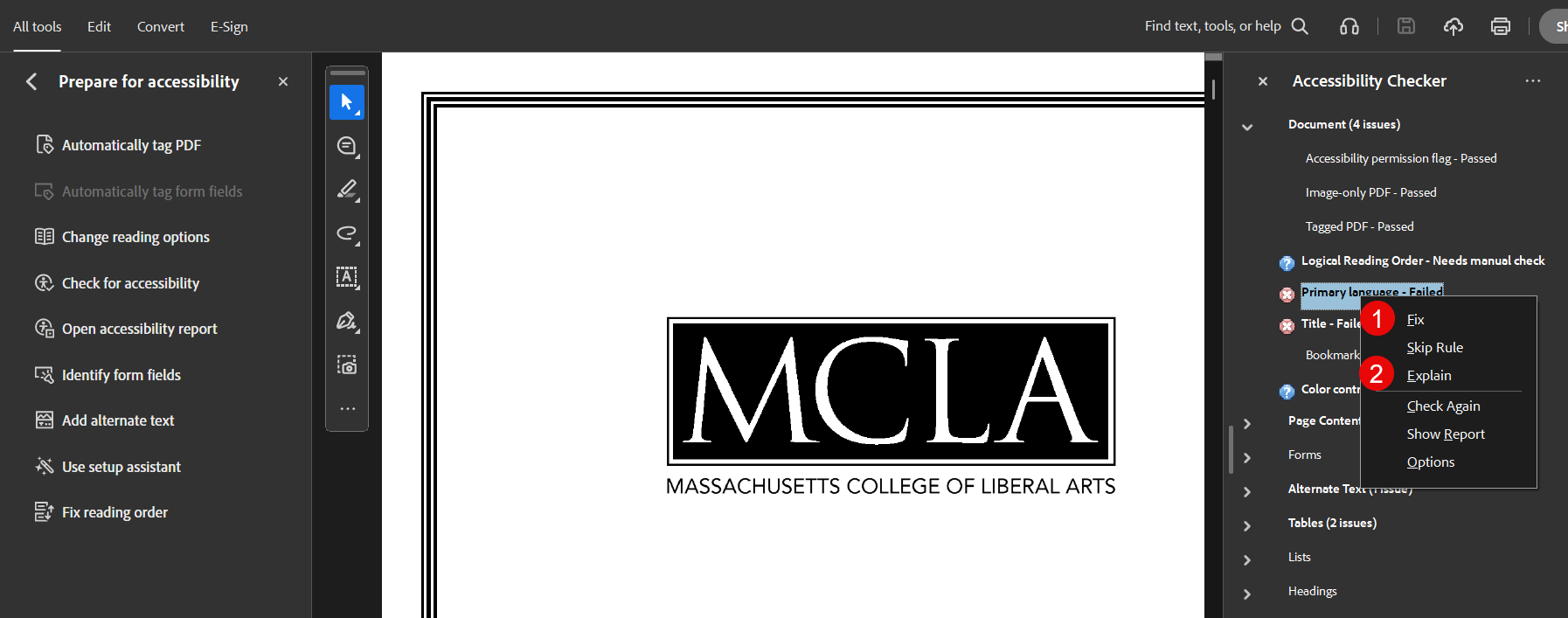
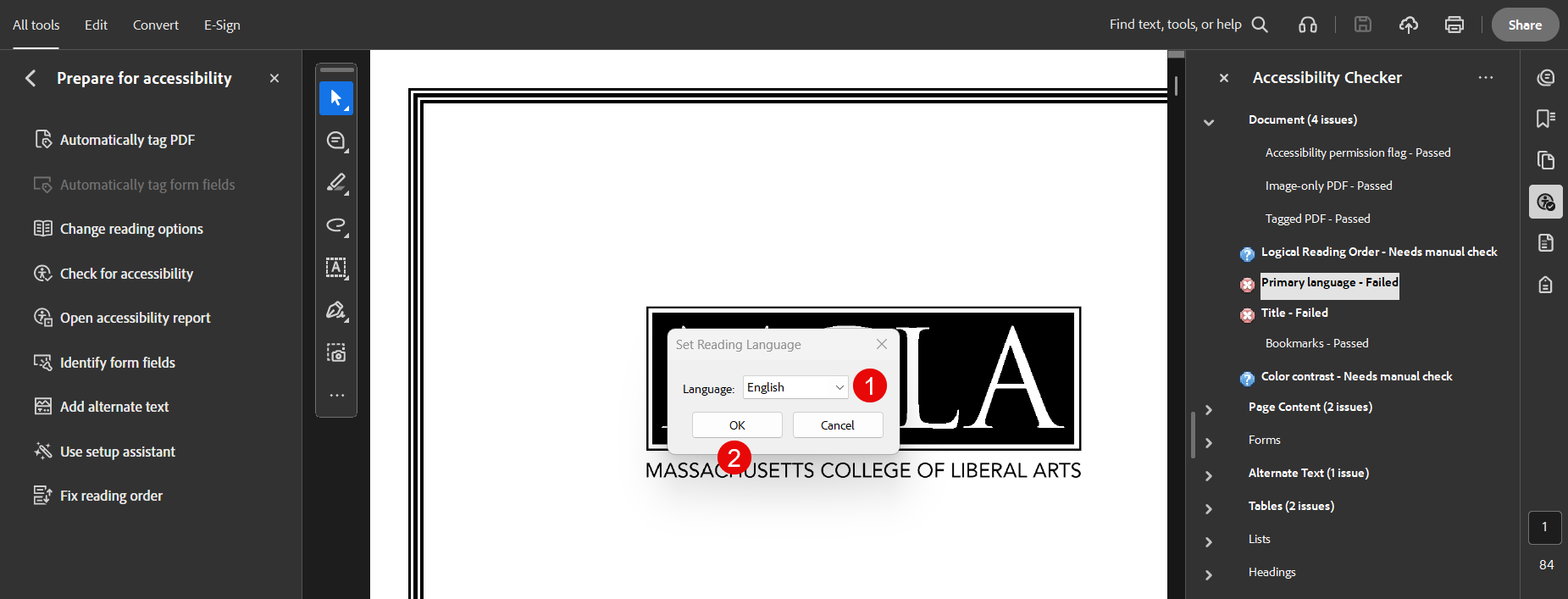
For the "Primary language" failure, select “English” as the document language and click “OK” to resolve the issue.
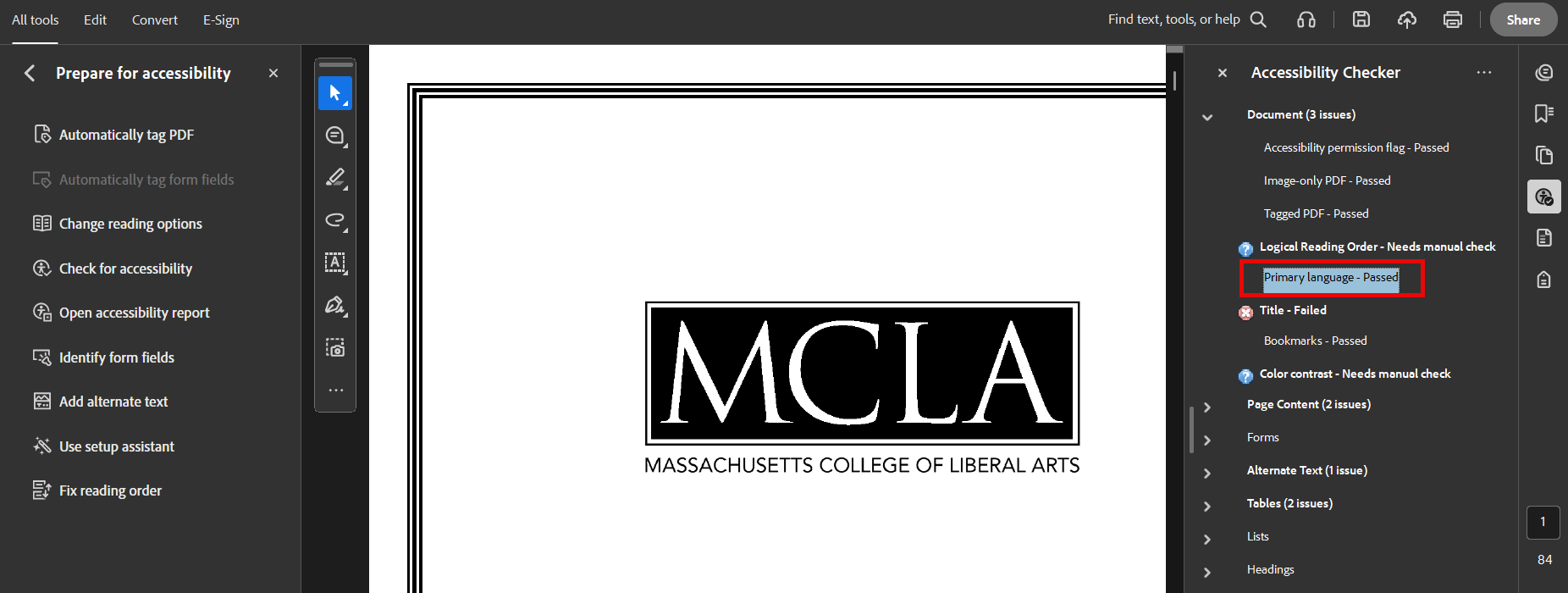
The report will update to “Passed”
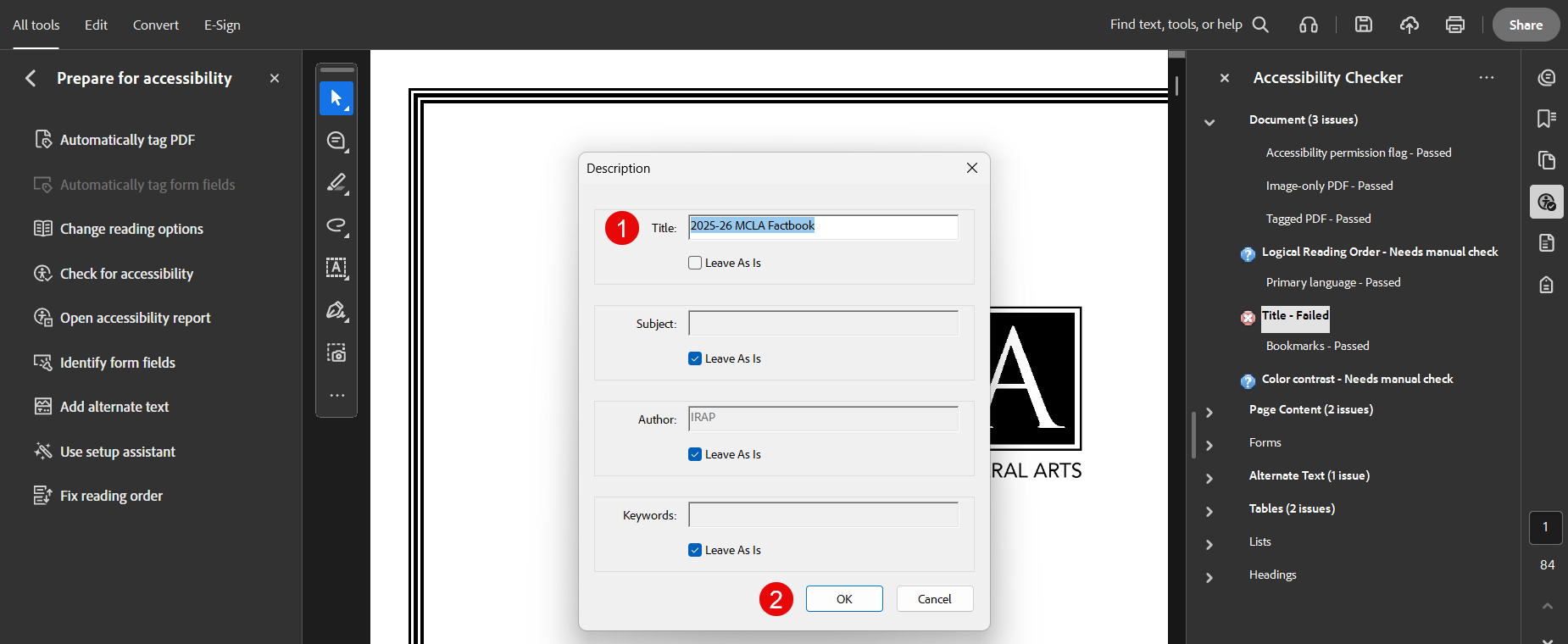
For the "Title" failure, enter a descriptive title and click “OK” to resolve the issue.
Certain failures cannot be fixed in Acrobat and will need to be fixed in the original document. As an example,
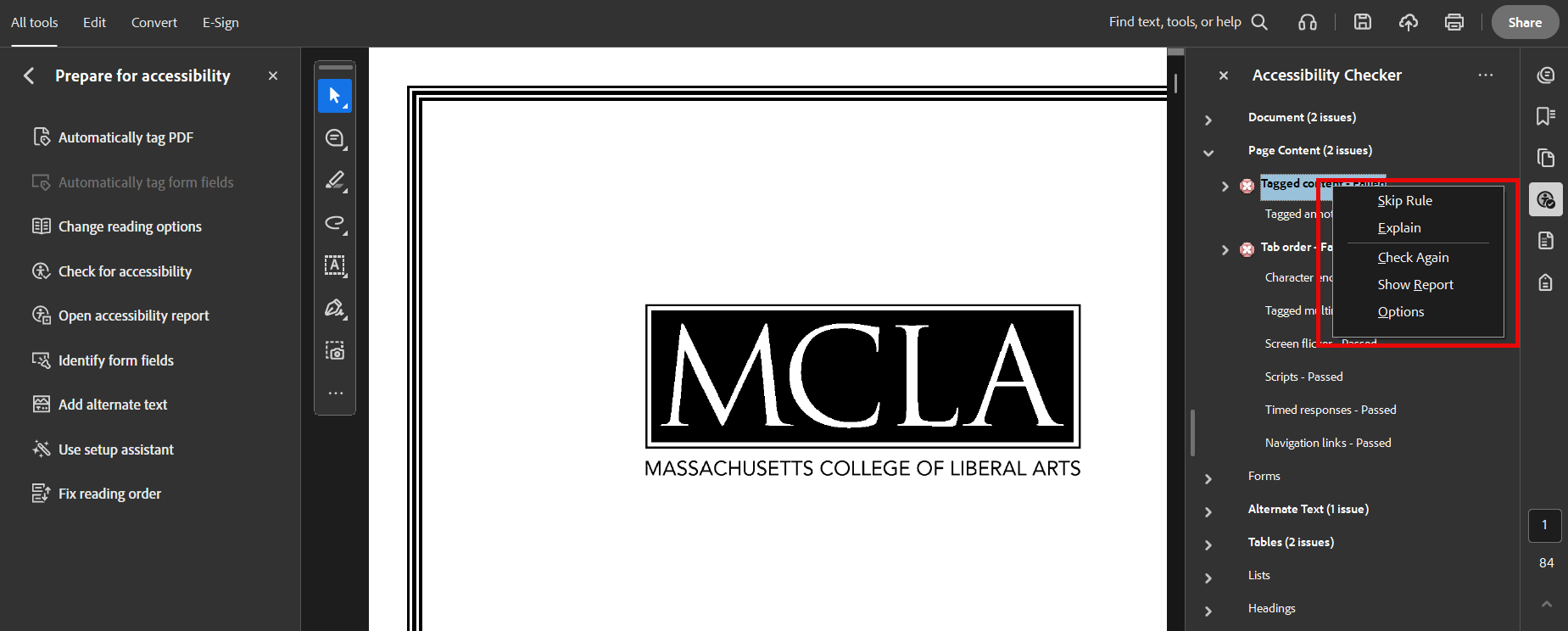
In these cases, you'll need to review the “Explain” documentation to get an understanding
of the issue and then edit the document directly to resolve the issue.
Note: This section will be updated as more knowledge becomes available.
Consider whether the content can be presented as a webpage if a PDF format is not
required. If so, submit a web request or contact marketing@mcla.edu for assistance.
Resources
Adobe: You can use Acrobat to make PDFs meet the common accessibility standards, such as the latest version of the Web Content Accessibility Guidelines (WCAG)
ADA: First Steps Toward Complying with the Americans with Disabilities Act Title II Web and Mobile Application Accessibility Rule
WebAIM: Provides comprehensive guides for creating and remediating accessible PDFs using Adobe Acrobat Pro.
W3C: The World Wide Web Consortium (W3C) develops standards and guidelines to help everyone build and enjoy a web based on the principles of accessibility, internationalization, privacy and security.
We're Here to Help